Samba Configuration


# STEP13

# share points (useful for browsing/updating server files from Windows or Mac ) add the lines below at the end of the smb configuration:
#
# also, add the home storage shared point
# if you want to get a full access to the sd card content from windows/mac
# (attention ‘root’ access here)
#

  1. $ sudo nano /etc/samba/smb.conf

# edit samba configuration by commenting [home] entries and adding the settings bellow at end (playlists, music and storage access)

[playlists]
path = /var/lib/mpd/playlists
read only = no
public = yes
writable = yes
browseable = yes
guest ok = yes
create mask = 0777
directory mask = 0755
force user = mpd

[music]
path = /mnt/media
read only = no
public = yes
writable = yes
browseable = yes
guest ok = yes
create mask = 0777
directory mask = 0755
force user = mpd

[www]
path = /var/www/html
read only = no
public = yes
writable = yes
browseable = yes
guest ok = yes
create mask = 0777
directory mask = 0755
force user = www-data

[Downloads]
path = /home/pi/Downloads
read only = no
public = yes
writable = yes
browseable = yes
guest ok = yes
create mask = 0777
directory mask = 0755
force user = pi

[scripts]
path = /home/pi/scripts
read only = no
public = yes
writable = yes
browseable = yes
guest ok = yes
create mask = 0777
directory mask = 0755
force user = pi

[sdcard]
path = /home/pi
read only = no
public = yes
writable = yes
browseable = yes
guest ok = yes
create mask = 0777
directory mask = 0755
force user = root


# CTRL+O to save
# CTRL+X to exit

# restart samba:

  1. $ sudo /etc/init.d/smbd restart

# or

  1. $ sudo systemctl restart smbd


# wait 5 sec and type the cmd below if shared points are NOT visible from your Windows network browser:

  1. $ sudo systemctl restart nmbd

# now install WS Discovery service to view linux machine from Windows Explorer Network.

  1. $ sudo apt install wsdd

# check the status of the service

  1. $ sudo systemctl status wsdd

# the music contains the songs files and playlists directory is empty but visible using the Windows network browser on your PC

# OPTIONAL: reboot your device

  1. $ sudo reboot

# IMPORTANT: it’s recommended to remove the [sdcard] shared point from smb.conf as soon as your installation is working correctly.

Click the button NEXT below to continue…

Activate MPD


# STEP11

# activate service

  1. $ sudo systemctl enable mpd


# restart MPD

  1. $ sudo systemctl start mpd


# if you have an error in your conf file and MPD didn't start type the following to get the error line:

  1. $ sudo systemctl status mpd


# loop step 10/11 to fix mpd.conf until MPD start correctly without error (see previous step)


# STEP12

# create playlists directory if not exists

  1. $ ls -l /var/lib/mpd/
pi@musiclounge:~$ ls -l /var/lib/mpd/
total 28
drwxr-xr-x 2 root root   4096 Feb 25  2019 music
drwxr-xr-x 2 mpd  audio  4096 Feb 25  2019 playlists
-rw-r--r-- 1 mpd  audio   189 Jun 18 04:37 state
-rw-r--r-- 1 mpd  audio 12288 Jun 18 04:29 sticker.sql
-rw-r--r-- 1 mpd  audio   241 Jun 18 04:41 tag_cache

# SKIP THIS STEP if playlists directory exists (should be already created by MPD installation)

# if the directory does not exist, create it

  1. $ sudo mkdir /var/lib/mpd/playlists


# change user:group if not mpd:audio

  1. $ sudo chown mpd:audio /var/lib/mpd/playlists


# set permission if not already 755

  1. $ sudo chmod 755 /var/lib/mpd/playlists


Click the button NEXT below to continue...

Configure MPD


# STEP10

# YOUR USB DAC MUST BE CONNECTED TO THE USB PORT AND READY

# edit the configuration of MPD with a DAC USB connected but before:

# identify your USB DAC ID (usually card 1):

  1. $ aplay -l

# in case of *No Soundcard Error*, read our tutorial to install ALSA correctly and prepare your Linux distribution

# to list of playback hardware devices (card 0, card 1, car 2….) and to get the index of your USB DAC

# report this index number in the line device “hw:x,0” of all audio output in mpd.conf see below

# the USB DAC should be indexed 1 or 2

# BEWARE if you disable the RASPBERRY PI HDMI port later (see the corresponding howto) the ID of your DAC will certainly change which require to modify mpd.conf audio output as well


# If your sound card order changes on boot, you can “play” with /etc/modprobe.d/alsa-base.conf to specify its order. For example, if you want your snd_usb_audio (USB DAC) card to be #1:

options snd_usb_audio index=1

You can also provide an index of -2 to instruct ALSA to never use a card as the primary one and ensure USB DAC never getting index 0:

options snd_usb_audio index=-2

This will change the order of the devices in the list (read the ALSA doc online to get more info on alsa-base.conf).

# check the card IDs after reboot with

  1. $ aplay -l
**** List of PLAYBACK Hardware Devices ****
card 0: Headphones [bcm2835 Headphones], device 0: bcm2835 Headphones [bcm2835 Headphones]
  Subdevices: 8/8
  Subdevice #0: subdevice #0
  Subdevice #1: subdevice #1
  Subdevice #2: subdevice #2
  Subdevice #3: subdevice #3
  Subdevice #4: subdevice #4
  Subdevice #5: subdevice #5
  Subdevice #6: subdevice #6
  Subdevice #7: subdevice #7
card 1: MQA [D90 MQA], device 0: USB Audio [USB Audio]
  Subdevices: 1/1
  Subdevice #0: subdevice #0
card 2: vc4hdmi0 [vc4-hdmi-0], device 0: MAI PCM i2s-hifi-0 [MAI PCM i2s-hifi-0]
  Subdevices: 1/1
  Subdevice #0: subdevice #0
card 3: vc4hdmi1 [vc4-hdmi-1], device 0: MAI PCM i2s-hifi-0 [MAI PCM i2s-hifi-0]
  Subdevices: 1/1
  Subdevice #0: subdevice #0

# also to get the name of the driver list the sound modules with:

  1. $ cat /proc/asound/modules
 0 snd_bcm2835
 1 snd_usb_audio
 2 vc4
 3 vc4

# example of configuration for the raspberry PI 5 or PI 4, edit the alsa-base.conf

  1. $ sudo nano /etc/modprobe.d/alsa-base.conf
options snd_usb_audio index=-2

# on raspberry PI 5 and PI 4 with latest bookworm OS disable HDMI (vc4 kms driver) to be sure to get the card id 1 for your USB DAC.
# edit the config.txt and reboot
# comment: camera_auto_detect=1, dtoverlay=vc4-kms-v3d and max_framebuffers=2
#
and set display_auto_detect=0 see below

  1. $ sudo nano /boot/firmware/config.txt
# Enable audio (loads snd_bcm2835)
dtparam=audio=on

# Additional overlays and parameters are documented
# /boot/firmware/overlays/README

# Automatically load overlays for detected cameras
#camera_auto_detect=1

# Automatically load overlays for detected DSI displays
display_auto_detect=0

# Automatically load initramfs files, if found
auto_initramfs=1

# Enable DRM VC4 V3D driver
#dtoverlay=vc4-kms-v3d
#max_framebuffers=2

# then check with aplay -l

$ aplay -l
**** List of PLAYBACK Hardware Devices ****
card 0: Headphones [bcm2835 Headphones], device 0: bcm2835 Headphones [bcm2835 Headphones]
Subdevices: 8/8
Subdevice #0: subdevice #0
Subdevice #1: subdevice #1
Subdevice #2: subdevice #2
Subdevice #3: subdevice #3
Subdevice #4: subdevice #4
Subdevice #5: subdevice #5
Subdevice #6: subdevice #6
Subdevice #7: subdevice #7
card 1: MQA [D90 MQA], device 0: USB Audio [USB Audio]
Subdevices: 1/1
Subdevice #0: subdevice #0

# reboot

  1. $ sudo reboot

# backup default MPD config mpd.conf into our Downloads/ directory

  1. $ sudo cp /etc/mpd.conf ~/Downloads/mpd.conf

# erase the current config and replace with the settings below

  1. $ sudo truncate -s 0 /etc/mpd.conf
  1. $ sudo nano /etc/mpd.conf

# replace with the settings below

# nano shortcut: CTRL + K to cut an entire line
# this settings use USB DAC on card 1 (hw:1,0), change the index accordingly if needed

# copy the lines below and right-click on nano editor to paste
#

music_directory "/mnt/media"
playlist_directory "/var/lib/mpd/playlists"
db_file "/var/lib/mpd/tag_cache"
log_file "/var/log/mpd/mpd.log"
# uncomment pid_file if you do not use systemd 
#pid_file "/run/mpd/pid"
state_file "/var/lib/mpd/state"
sticker_file "/var/lib/mpd/sticker.sql"
user "mpd"
group "audio"
bind_to_address "any"
port "6600"
log_level "default"
restore_paused "yes"
#save_absolute_paths_in_playlists "no"
#metadata_to_use "artist,album,title,track,name,genre,date,composer,performer,disc"
#metadata_to_use "+comment"
auto_update "no"
#auto_update_depth "3"
follow_outside_symlinks "yes"
follow_inside_symlinks "yes"
zeroconf_enabled "no"
zeroconf_name "Music DAC"
connection_timeout "120"
#password "password@read,add,control,admin"
#default_permissions "read,add,control,admin"
#
###############################################################################

# Database #######################################################################
#

#database {
# plugin "proxy"
# host "other.mpd.host"
# port "6600"
#}

# Input #######################################################################
#

input {
plugin "curl"
# proxy "proxy.isp.com:8080"
# proxy_user "user"
# proxy_password "password"
}

# QOBUZ input plugin
input {
enabled "no"
plugin "qobuz"
# app_id "ID"
# app_secret "SECRET"
# username "USERNAME"
# password "PASSWORD"
# format_id "N"
}

# TIDAL input plugin
input {
enabled "no"
plugin "tidal"
# token "TOKEN"
# username "USERNAME"
# password "PASSWORD"
# audioquality "Q"
}

# Decoder #####################################################################
#

decoder {
plugin "ffmpeg"
enabled "yes"
# gapless "no"
}

decoder {
plugin "wildmidi"
enabled "no"
}

replaygain "off"
replaygain_preamp "0"
#replaygain_missing_preamp "0"
#replaygain_limit "yes"
volume_normalization "no"
filesystem_charset "UTF-8"

###############################################################################

audio_output {
type "alsa"
name "Default"
device "hw:1,0"
mixer_type "none"
dop "no"
}

audio_output {
type "alsa"
name "ALSA DAC DOP"
device "hw:1,0"
mixer_type "none"
dop "yes"
}

audio_output {
type "alsa"
name "ALSA DAC NoDOP"
device "hw:1,0"
mixer_type "none"
dop "no"
}

audio_buffer_size "4096"
#buffer_before_play "10%"
max_output_buffer_size "131072"
max_connections "128"

audio_output {
type "alsa"
name "ALSA EQ"
device "plug:plugequal"
# format "44100:16:2" # optional
# mixer_device "default" # optional
# mixer_control "PCM" # optional
# mixer_index "0" # optional
}
# optional output to stream music using vorbis encoder to local device (phone, tablet, pc,...)
audio_output {
type            "httpd"
name            "Local Stream"
encoder         "vorbis"
#encoder        "lame"         # comment vorbis and use lame for iOS support
port            "8000"
quality         "5.0"           # do not define if bitrate is defined
#bitrate        "128"           # do not define if quality is defined
#format          "44100:16:1"
always_on       "yes"           # prevent MPD from disconnecting all listeners when playback
tags            "yes"           # httpd supports sending tags to listening streams.
}

# to get an high res stream from your MPD server change quality from “5.0” to “10.0”
# beware high quality stream needs a high speed WIFI/network to work smoothly

# optional output to stream music using MP3 encoder to local device (phone, tablet, pc,...)
audio_output {
type            "httpd"
name            "Local Stream MP3"
encoder         "lame"
#encoder        "lame"         # comment vorbis and use lame for iOS support
port            "8000"
quality         "0"           # do not define if bitrate is defined
#bitrate        "128"           # do not define if quality is defined
format          "44100:16:2"
always_on       "yes"           # prevent MPD from disconnecting all listeners when playback
tags            "yes"           # httpd supports sending tags to listening streams.
}

# to get an high quality MP3 stream from your MPD server
# set the quality for VBR from “0” the highest quality to “9” the lowest quality.
# beware high quality stream needs a high speed WIFI/network to work smoothly

# CTRL+O to save
# CTRL+X to exit

# to get the stream, select “Local Stream” or “Local Stream MP3” audio output in myMPD or any MPD client
# then open VLC app for example and type the address http://musiclounge:8000 in Open Network Stream and play.

# OPTIONAL: You can skip this step if a server distribution is installed
# but for desktop distro you have to disable MPD user service
# because you run it as a headless server:

  1. $ sudo rm /etc/xdg/autostart/mpd.desktop
  2. $ sudo systemctl --global disable mpd.service
  3. $ sudo systemctl --global disable mpd.socket

# MPD server is now configured.
# Click NEXT button to activate Music Player Daemon


# TROUBLESHOUTING

# if the error is releated to audio device not found, read again the first chapter of this tutorial to configure modprobe correctly and ensure your USB DAC card ID is 1 or edit all your configuration including MPD to change the plugin hardware id (“plughw:X,0”)

# in case of error (generally occurs within 5s just after playing):

alsa_output: Decoder is too slow; playing silence to avoid xrun

# adding the following lines to all your audio output in mpd configuration (/etc/mpd.conf) may help
#

buffer_time "200000"
period_time "5084"

#
# edit mpd.conf and scroll to audio output area to add the 2 lines

  1. $ sudo nano /etc/mpd.conf
.
.
.
audio_output {
type "alsa"
name "Default"
device "hw:1,0"
mixer_type "none"
dop "no"
buffer_time "200000"
period_time "5084"
}

audio_output {
type "alsa"
name "ALSA DAC DOP"
device "hw:1,0"
mixer_type "none"
dop "yes"
buffer_time "200000"
period_time "5084"
}
.
.
.

#
# in case of non fatal binding error

server_socket: bind to '0.0.0.0:8000' failed (continuing anyway, because binding to '[::]:8000' succeeded): Failed to bind socket: Address already in use

# a binding already exists due to ipv6, however mpd is running correctly. if you do not need ipv6 support follow these instructions to disable it by using sysctl command and by adding the kernel option ipv6.disable=1 https://www.wikihow.com/Disable-Ipv6-on-Linux


Control The Volume Good or Bad? - Read More...

# keep a Bit Perfect audio with a control of the volume, possible?
# yes, this is possible but only if this is supported by your USB DAC and only with PCM

# check if hardware volume is supported
# get the card number of your USB DAC
# (should be 1 if you only have 1 DAC connected)

  1. $ aplay -l
pi@musiclounge:~$ aplay -l
**** List of PLAYBACK Hardware Devices ****
card 0: S9Pro [Hidizs S9Pro], device 0: USB Audio [USB Audio]
  Subdevices: 0/1
  Subdevice #0: subdevice #0
card 1: MQA [D90 MQA], device 0: USB Audio [USB Audio]
  Subdevices: 1/1
  Subdevice #0: subdevice #0
card 2: SM1ODROIDC4 [SM1-ODROID-C4], device 0: fe.dai-link-0 (*) []
  Subdevices: 1/1
  Subdevice #0: subdevice #0
card 2: SM1ODROIDC4 [SM1-ODROID-C4], device 1: fe.dai-link-1 (*) []
  Subdevices: 1/1
  Subdevice #0: subdevice #0
card 2: SM1ODROIDC4 [SM1-ODROID-C4], device 2: fe.dai-link-2 (*) []
  Subdevices: 1/1
  Subdevice #0: subdevice #0

# in this example we have 2 DAC connected
# list mixer contents of the device 1

  1. $ amixer --card 1 scontents
 
pi@musiclounge:~$ amixer --card 1
pi@musiclounge:~$

# nothing for the topping D90

# now for the S9 Pro

  1. $ amixer --card 0 scontents
pi@musiclounge:~$ amixer --card 0
Simple mixer control 'PCM',0
  Capabilities: pvolume pswitch pswitch-joined
  Playback channels: Front Left - Front Right
  Limits: Playback 0 - 127
  Mono:
  Front Left: Playback 127 [100%] [0.00dB] [on]
  Front Right: Playback 127 [100%] [0.00dB] [on]
Simple mixer control 'PCM',1
  Capabilities: pvolume pvolume-joined
  Playback channels: Mono
  Limits: Playback 0 - 127
  Mono: Playback 87 [69%] [-20.00dB]

# great! the hardware volume is supported on this DAC
# now we change the mpd.conf to add this dac with hardware volume control

  1. $ sudo nano /etc/mpd.conf

# add this at the end of your configuration
# hw:0 must changed to corresponding card number of your DAC

audio_output {
type "alsa"
name "Hidizs S9 Pro Mixer ON"
device "hw:0,0"
mixer_type "hardware"
mixer_control "PCM"
mixer_index "0"
dop "no"
}

# another example with Topping D50 III DAC on card id 1

audio_output {
type "alsa"
name "Topping D50 III VOL ID1"
device "hw:1,0"
mixer_device "hw:1"
mixer_type "hardware"
mixer_control "D50\ III"
mixer_index "1"
dop "no"
}

# CTRL+O to save
# CTRL+X to exit

# that’s it!

# Our recommendation is to avoid using volume control in MPD configuration if
# a physical or integrated volume control is already included with your DAC

# in case you have no support of hardware mixer (volume) in your DAC capabilities
# but still want a “software” control of the volume here is the audio output to add to mpd.conf
# this is obviously not recommended

audio_output {
type "alsa"
name "ALSA Software Volume"
device "hw:1,0"
mixer_type "software"
dop "no"
}

Click the button NEXT below to continue…

Music Player Daemon (MPD) Server


# STEP9

# install MPD (server)and MPC (music player)
# Music Player Daemon (MPD) Info:
# https://www.musicpd.org/

# create a simbolic link for backward compatibility with old version of MPD # which target by default the configuration file in /usr/local/etc/mpd.conf

  1. $ ls /usr/local/etc


# result should be empty or not found then type

  1. $ sudo rm -r /usr/local/etc


  1. $ sudo ln -s /etc /usr/local/


# type again and result should show the files of etc/ directory

  1. $ ls /usr/local/etc

# optional pkg update

  1. $ sudo apt update

# install MPD

  1. $ sudo apt install mpd mpc -y

# Check mpd version

  1. $ mpd -V

# should be 0.21.22 or greater
# if the version is lower then compile and install mpd
# ( version 0.23.15 works really well with Raspberry PI 5 and PI 4 and Odroid C4, latest version works with barbone PC as well )

# our recommendation is to start with the super stable 0.23.12 and later give the latest version of MPD a try.

# you decide, you have the full info here to compile and install MPD, this is one of the benefit to get a full control of your audio server.

Click NEXT button below to skip the compilation of MPD …


COMPILE AND INSTALL NEW MPD 0.24+ - Click To Read More...

# check your gcc version:

  1. $ gcc --version

# if command not found install build-essential package

  1. $ sudo apt -y install build-essential

# skip the gcc install if version is 12.x+ or greater

  1. $ sudo apt install gcc-12-base

# FOR RASPBERRY PI OWNERS:

# on compilation error increase swap file size,
# change default 100 to 1024

  1. $ sudo nano /etc/dphys-swapfile

CONF_SWAPSIZE=1024

# reboot if you change the swap size

  1. $ sudo reboot

# get url archive from https://www.musicpd.org/download.html
# download latest archive mpd-0.24.x.tar.xz into your home directory (Downloads/ for example)
https://www.musicpd.org/download/mpd/0.2X/mpd-0.24.XX.tar.xz

# be sure to select your /Downloads folder inside your home directory (create the folder Downloads if needed)

  1. cd ~/Downloads

# hyper stable MPD release

  1. $ sudo wget https://www.musicpd.org/download/mpd/0.24/mpd-0.24.4.tar.xz

# extract (replace -version by the version of mpd mpd-0.24.4.tar.xz):

  1. $ sudo tar xf mpd-version.tar.xz

# enter directory:

  1. $ cd mpd-0.24.4

# or get the very latest (unstable dev release) by cloning the MPD git to MPD/

# install git if not found

  1. $ sudo apt install git
  1.  $ sudo git clone https://github.com/MusicPlayerDaemon/MPD.git
  1. $ cd MPD

# install dependencies:

In any case, you need: a C++20 compiler (e.g. GCC 12 or clang 14) Meson 1.0 and Ninja latest pkg-config

  1. $ sudo apt-get install ninja-build

# the command below must includes a lot of dev libraries
# be careful to double check it before validation with enter key
#

$ sudo apt install meson g++ pkgconf \
  libfmt-dev \
  libpcre2-dev \
  libmad0-dev libmpg123-dev libid3tag0-dev \
  libflac-dev libvorbis-dev libopus-dev libogg-dev \
  libadplug-dev libaudiofile-dev libsndfile1-dev libfaad-dev \
  libfluidsynth-dev libgme-dev libmikmod-dev libmodplug-dev \
  libmpcdec-dev libwavpack-dev libwildmidi-dev \
  libsidplay2-dev libsidutils-dev libresid-builder-dev \
  libavcodec-dev libavformat-dev \
  libmp3lame-dev libtwolame-dev libshine-dev \
  libsamplerate0-dev libsoxr-dev \
  libbz2-dev libcdio-paranoia-dev libiso9660-dev libmms-dev \
  libzzip-dev \
  libcurl4-gnutls-dev libexpat1-dev \
  nlohmann-json3-dev \
  libasound2-dev libao-dev libjack-jackd2-dev libopenal-dev \
  libpulse-dev libshout3-dev \
  libsndio-dev \
  libmpdclient-dev \
  libnfs-dev \
  libupnp-dev \
  libavahi-client-dev \
  libsqlite3-dev \
  libsystemd-dev \
  libgtest-dev \
  libicu-dev \
  libchromaprint-dev \
  libgcrypt20-dev \
  libsystemd-dev \
  libpipewire-0.3-dev

# reboot maybe required here # check meson version (1.0 minimum)

  1. $ meson -v

# configure:

  1. $ sudo meson . output/release --buildtype=debugoptimized -Db_ndebug=true -Dsysconfdir=/etc

# check configuration:

  1. $ sudo meson configure output/release

# compile (could take a while… ):

  1. $ sudo ninja -C output/release

# install:

# stop mpd in case it’s running

  1. $ sudo systemctl stop mpd
  1. $ sudo ninja -C output/release install

# go to home directory

  1. $ cd ~/

# Congrats! MPD is compiled and installed


COMPILE AND INSTALL OLD MPD - Click To Read More...

# check your gcc version:

  1. $ gcc --version

# if command not found install build-essential package

  1. $ sudo apt -y install build-essential

# skip the gcc install if version is 8.x+ or greater

  1. $ sudo apt install gcc-8-base

# FOR RASPBERRY PI OWNERS:

# on compilation error increase swap file size,
# change default 100 to 1024

  1. $ sudo nano /etc/dphys-swapfile

CONF_SWAPSIZE=1024

# reboot if you change the swap size

  1. $ sudo reboot

# get url archive from https://www.musicpd.org/download.html
# download latest archive mpd-0.23.x.tar.xz into your home directory (Downloads/ for example)
https://www.musicpd.org/download/mpd/0.2X/mpd-0.2X.XX.tar.xz

# be sure to select your /Downloads folder inside your home directory (create the folder Downloads if needed)

  1. cd ~/Downloads

# hyper stable MPD release

  1. $ sudo wget https://www.musicpd.org/download/mpd/0.23/mpd-0.23.12.tar.xz

# extract (replace -version by the version of mpd mpd-0.23.12.tar.xz):

  1. $ sudo tar xf mpd-version.tar.xz

# enter directory:

  1. $ cd mpd-0.23.12

# or get the very latest (unstable dev release) by cloning the MPD git to MPD/

# install git if not found

  1. $ sudo apt install git
  1.  $ sudo git clone https://github.com/MusicPlayerDaemon/MPD.git
  1. $ cd MPD

# install dependencies:

In any case, you need: a C++17 compiler (e.g. GCC 8 or clang 5) Meson 0.49.0 and Ninja Boost 1.58 pkg-config

  1. $ sudo apt-get install ninja-build

# the command below must includes a lot of dev libraries
# be careful to double check it before validation with enter key
#

$ sudo apt install meson g++ \
libfmt-dev \
libpcre2-dev \
libmad0-dev libmpg123-dev libid3tag0-dev \
libflac-dev libvorbis-dev libopus-dev libogg-dev \
libadplug-dev libaudiofile-dev libsndfile1-dev libfaad-dev \
libfluidsynth-dev libgme-dev libmikmod-dev libmodplug-dev \
libmpcdec-dev libwavpack-dev libwildmidi-dev \
libsidplay2-dev libsidutils-dev libresid-builder-dev \
libavcodec-dev libavformat-dev \
libmp3lame-dev libtwolame-dev libshine-dev \
libsamplerate0-dev libsoxr-dev \
libbz2-dev libcdio-paranoia-dev libiso9660-dev libmms-dev \
libzzip-dev \
libcurl4-gnutls-dev libyajl-dev libexpat-dev \
libasound2-dev libao-dev libjack-jackd2-dev libopenal-dev \
libpulse-dev libshout3-dev \
libsndio-dev \
libmpdclient-dev \
libnfs-dev \
libupnp-dev \
libavahi-client-dev \
libsqlite3-dev \
libsystemd-dev \
libgtest-dev \
libboost-dev \
libicu-dev \
libchromaprint-dev \
libgcrypt20-dev

# reboot maybe required here # check meson version (0.49 minimum)

  1. $ meson -v

# configure:

  1. $ sudo meson . output/release --buildtype=debugoptimized -Db_ndebug=true -Dsysconfdir=/etc

# check configuration:

  1. $ sudo meson configure output/release

# compile (could take a while… ):

  1. $ sudo ninja -C output/release

# install:

# stop mpd in case it’s running

  1. $ sudo systemctl stop mpd
  1. $ sudo ninja -C output/release install

# go to home directory

  1. $ cd ~/

# Congrats! MPD is compiled and installed


# if you just upgraded your mpd installation, you’re done, simply reboot
# if this is your first install click the button NEXT below to continue the installation…

  1. $ sudo reboot

Local Music Library Or USB Hard Drive

# using a local music library is very easy, simply add all your music inside /mnt/media, this folder is shared on the local network and is also available from host \\MUSICLOUNGE\music (read the SAMBA configuration for more info)

# using an external USB hard drive for your music library is also easy but the disk must be powered (even an SSD) with an external adapter.

# so make sure the usb hard drive is powered with an external adapter and plug the usb cable on the server board (rPI 4 or C4 or Pc),

Install exFAT File System

# exFAT file system is not installed by default on all distributions and you may need it
# to install exFAT do the following:

  1. $ sudo apt-get install exfat-fuse
  2. $ sudo apt-get install exfat-utils
  3. $ sudo reboot

Configuration

# start to list disks attached to find where is located

  1. $ sudo fdisk -l
Device Boot Start End Sectors Size Id Type
/dev/sda1 63 1953520064 1953520002 931.5G 7 HPFS/NTFS/exFAT

# /dev/sda1 is our usb hard drive location


# now get its UUID and file system

  1. $ sudo blkid
/dev/sda1: LABEL="SAMSGBKUP" UUID="9A2B-8FC2" TYPE="exfat" PARTUUID="5b0a6a10-01"

# here we have 9A2B-8FC2 as UUID and exfat file system

Auto-Mounting Drive

# normally if the MusicLounge audiophile server is correctly installed the /mnt/media directory is already there, check this:

  1. $ ls /mnt/media

# creates the directory if needed:

  1. $ sudo mkdir /mnt/media

# edit fstab to mount the disk at startup

  1. $ sudo nano /etc/fstab

# add this line WITH YOUR UUID and correct file system

# comment with # prefix any other line with /mnt/media)

UUID=9A2B-8FC2 /mnt/media exfat defaults,auto,umask=000,users,rw 0 0

# CTRL + X and Y to save

# before rebooting it’s important to test your fstab configuration

  1. $ sudo mount -a

# edit and check fstab configuration again if the command return an error

# reboot

  1. $ sudo reboot

# check your music library

  1. $ ls /mnt/media

Update MPD Database

# to update database use your favorite MPD client (MALP or DroidMyMPD or myMPD on your web browser) or open SSH session and type:

  1. $ mpc update

# that’s it!
# your music library is now on local disk

Tips

# to mount an exFat hard dive manually

  1. $ sudo mount -t exfat /dev/sda1 /mnt/media

# to unmount

  1. $ sudo umount -f /mnt/media

NGINX WEB Server


# STEP8

# install lightweight web server (nginx) to:
# get access to covers (album artwork) from MPD client
# use a internet browser with MPD WEB Client MyMPD on your desktop PC, tablet or phone to play and browse your music library

# Install the web server and dependencies:

  1. $ sudo apt-get install nginx php-curl php-sqlite3 php-gd php-json php-xml php-mbstring php-fpm php-intl imagemagick

# Edit configuration:

  1. $ sudo nano /etc/nginx/nginx.conf

# add this lines under gzip section

 gzip on;
 gzip_vary on;
 gzip_buffers 16 8k;
 gzip_comp_level 6;
 gzip_min_length 1000;
 gzip_proxied expired no-cache no-store private auth;
 gzip_types text/plain text/css application/json application/x-javascript text/xml application/xml application/xml+rss text/javascript application/vnd.ms-fontobject application/x-font-ttf font/opentype image/svg+xml image/x-icon;
 gzip_disable msie6;
 gzip_http_version 1.1;

# CTRL+O to save
# CTRL+X to exit


# Add an alias to get access to album cover (artwork) from http://192.168.x.x/music/…cover.jpg:
# add a redirection to myMPD (MPD WEB Client)
# Edit the default configuration and to write new server configuration below :

  1. $ sudo nano /etc/nginx/sites-available/default

# php is enabled (see the equalizer UI doc)
# and IPv6 is disabled by default on your LAN (the line listen [::]:80 default_server; is commented)
# BEWARE: php version 8.2 is installed by default in edition 2024 (bookworm),
# if Debian buster is installed and you didn’t update php change the fastcgi_pass line to your php version 7.x
# example for version 7.4: fastcgi_pass unix:/var/run/php/php7.4-fpm.sock;

	
server {
        listen 80 default_server;
#       listen [::]:80 default_server;

        root /var/www/html;

        # Add index.php to the list if you are using PHP
        index index.html index.htm index.php;

        server_name _;

        location /favicon.ico {
                alias /var/www/html/ml_play.png;
        }

        location /music {
                alias /mnt/media;
        }

        location /mympd/ {
                return 301 http://$host:8080/;
        }

        location /eq/ {
                return 301 http://$host:80/;
        }

        location ~* \.(css|js|jpg|jpeg|png|gif|ico|svg)$ {
                try_files $uri $uri/ =404;
        }

        location ~ \.php$ {
                include snippets/fastcgi-php.conf;
                fastcgi_pass unix:/var/run/php/php8.2-fpm.sock;
        }

        location / {
                try_files $uri $uri/ /index.php?$query_string;
        }
}

# CTRL+O to save
# CTRL+X to exit

# OPTIONAL
# create temp directory to save settings

  1. $ sudo mkdir /var/www/html/tmp

# add the user pi (your username) to group www-data

  1. $ sudo usermod -a -G www-data pi

# set permission

  1. $ sudo chown -R www-data:www-data /var/www
  2. $ sudo chmod -R g+rwX /var/www

# create a soft link of the web directory
# to get access to it from your home

  1. ln -s /var/www/ ~/www

# restart service

  1. $ sudo systemctl restart nginx


  1. $ sudo systemctl status nginx

# optional: reboot

  1. sudo reboot

# that’s it!


# now you can get access to your album covers from http

# type this address in your browser (replace with IP of the server and path to music that contains folder.jpg or cover.jpg )
# http://192.168.XX.XX/music/<song_path>/cover.jpg

# ATTENTION: you have to enter the IP of MusicLounge Audiophile Server and NOT the ip of your Music library share point
# http://192.168.1.xxx/music is now the link to get access to your musics from any music players whatever the platform (Android, iOS, Windows, Linux, …)

# FOR EXAMPLE

http://192.168.1.xxx/music/Bach/Toccata/cover.jpg


# start a new SSH session, it’s time to install the main part of this audiophile server – Music Player Daemon (AKA MPD)

Click the button NEXT below to continue…

Samba (SMB) Server


# STEP7

# install samba server client (Windows file sharing)
# optional pkgs update

  1. $ sudo apt-get update


  1. $ sudo apt-get install samba samba-common smbclient samba-common-bin smbclient cifs-utils

# select <no> on prompt

# mount your music library (should be shared to everyone, password not required)

# in this example “Music” is your samba share that contains the music files,
# the IP address is the PC Host
# so path to \\ServerNAS\Music
# is replaced by
# //192.168.x.x/Music

# IMPORTANT to go further you need to know:
# the IP address of your server containing your music files
# the name of the shared directory
# and login/password of the share point if you cannot get access to the directory as guest

# if /mnt/media/ directory not exist create it

  1. $ ls /mnt/media/
  2. $ sudo mkdir /mnt/media


Mount Your Music Library - Read More...


# skip this part and click NEXT button if you intend to put your music library in local hard drive

# mount music library

  1. $ sudo mount -t cifs -o username=Guest,password=,vers=1.0 //192.168.x.x/Music /mnt/media


# username+password can be filled with your credentials, in this case ‘vers=1.0’ must be skipped:

  1. $ sudo mount -t cifs -o username=myname,password=mypasswd //192.168.x.x/Music /mnt/media


# SBM1 EXAMPLE if the IP of your NAS is 192.168.1.10:

  1. $ sudo mount -t cifs -o username=guest,password=,vers=1.0 //192.168.1.10/jukebox /mnt/media


# check if this is correctly mounted type:

  1. $ df -h


# your share point should be in the list and music files are available from /media/music

# result in last line should be for example:
# //192.168.x.x/Music 932G 655G 277G 71% /media/music

  1. $ ls /mnt/media


# the list contains your music files


Auto Mount Your Music Library At Startup - Read More...

# AUTO MOUNT THE MUSIC LIBRARY
# auto mount your music library at startup is easy

# edit fstab type

  1. $ sudo nano /etc/fstab


# example add the following line at end and change //192.168.x.x/Music to your values

# example1: connect as guest to \\MyNAS\Music directory (change to the IP of your NAS server and the name of shared directory)

//192.168.x.x/Music /mnt/media cifs username=guest,password=,vers=2.0,x-systemd.before=mpd.service,x-systemd.device-timeout=10s 0 0

# example2: enter your IP and change myname/mypasswd to your values:

//192.168.x.x/Music /mnt/media cifs username=myname,password=mypasswd,x-systemd.before=mpd.service,x-systemd.device-timeout=10s 0 0

# example3: with _netdev to wait for network:

//192.168.x.x/Music /mnt/media cifs username=guest,password=,_netdev,x-systemd.before=mpd.service,x-systemd.device-timeout=10s 0 0

# example4: SMB v2 with pi user:group and 755 permissions:

//192.168.x.x/music /mnt/media cifs username=guest,password=,vers=2.0,uid=1000,gid=1000,dir_mode=0755,file_mode=0755,x-systemd.before=mpd.service,x-systemd.device-timeout=10s 0 0

# complete example with:

– “\\NAS\music” library Windows share point (NAS IP address: 192.168.1.62),

– login as guest force SMB v1 (vers=1.0),

– waiting for network ( _netdev param)

//192.168.1.62/Music /mnt/media cifs username=guest,password=,vers=1.0,_netdev,x-systemd.before=mpd.service,x-systemd.device-timeout=10s 0 0

# example using systemd to check network availability and mount before mpd:

//192.168.x.x/Music /mnt/media cifs rw,uid=1000,gid=1000,nofail,username=dummyusr,password=dummypw,iocharset=utf8,x-systemd.before=mpd.service,x-systemd.after=network-online.target,x-systemd.after=systemd-resolved.service 0 0

# CTRL+O to save
# CTRL+X to exit

#
# x-systemd.before=mpd.service explanation:
# It is necessary to be sure the mount point is available before running the MPD service
# and also necessary to stop the MPD service before unmounting your library (/mnt/media/)
# otherwise, if you reboot or shutdown with your MPD status is in pause or playing
# the mount point will be busy and systemd unmount filesystem will fail and can take
# a while (more than 120s) to reboot.
# mount library

  1. $ sudo systemctl daemon-reload
  2. $ sudo mount -a

# to list all shared point type:

  1. $ findmnt -l

# only cifs:

  1. $ findmnt -t cifs

# at this point you may check and fix if needed your fstab entry by
# rebooting the device and checking ls /mn/media/ directory which should contains your song files


CIFS Mounts Disconnecting Issue - Read More...


#
# if you are using SMB v1 and after a couple of hour your /var/log/syslog is fulfilled of

CIFS VFS: Server 192.168.x.x has not responded in xxx seconds. Reconnecting...

# then you need an extra step to maintain your smb connection
# add the following script in scripts/ directory

  1. $ sudo nano ~/scripts/smb_v1_fix.sh
#!/bin/bash

while read spot; do
   touch --no-create "${spot}/.smb_v1_fix"
done <<< "$(mount | awk '/cifs/{ print $3; }')"

# CTRL+O to save
# CTRL+X to exit

# set the permission

  1. $ sudo chmod +x ~/scripts/smb_v1_fix.sh

#
# create an empty (hidden)file in your mounted library for simply touching it

  1. sudo touch /mnt/media/.smb_v1_fix

# add a cron job to run the script every 10 mn

  1. $ sudo nano /etc/cron.d/smb_v1_fix
*/10 *   *   *   *   root    /home/pi/scripts/smb_v1_fix.sh >/dev/null 2>&1

# CTRL+O to save
# CTRL+X to exit

# the status of your cron job can be checked easily

  1. $ sudo systemctl status cron

# also in system log

  1. $ sudo grep -a "smb_v1_fix.sh" /var/log/syslog

Click the button NEXT below to continue…

DHCP vs Static IP


# OPTIONAL STATIC IP

# identify your ethernet card name usualy eth0 or enp3s0

  1. $ ip link show

# A DHCP CONFIG IS PERFECTLY VALID for building your Audophile Server,
#
# DHCP Reservation service (included in your netbox/router) provides an IP address to a specific client based on it’s physical MAC address.
# the device will always get the same IP address and it will never change as soon as you do not replace your Ethernet card.

# check /etc/network/interfaces and add the following DHCP entries if missing

  1. $ sudo nano /etc/network/interfaces

# if your eternet card is eth0

auto eth0
iface eth0 inet dhcp

# or if it’s enp3s0 (amd64 Gigabyte Brix)

auto enp3s0
iface enp3s0 inet dhcp

# or if it’s enp2s0 (amd64 Intel NUC)

auto enp2s0
iface enp2s0 inet dhcp

# CTRL+O to save
# CTRL+X to exit

# or if netplan is used (Ubuntu 22.04 amd64) you can make a generic config
# to match any Ethernet adapter

  1. $ sudo nano /etc/netplan/00-installer-config.yaml
network:
  ethernets:
    eth:
      match:
        name: en*
      dhcp4: true
  version: 2

# CTRL+X then Y to save

# for amd64 check dmesg in case of error type:

  1. sudo dmesg
... firmware: failed to load i915/glk_dmc_ver1_04.bin (-2)

# install the realtek firmware and reboot
# add the non free repo to sources list

  1. sudo nano /etc/apt/sources.list

# add these lines

deb http://deb.debian.org/debian bullseye-backports main contrib non-free
deb-src http://deb.debian.org/debian bullseye-backports main contrib non-free

# update pkgs

  1. $ sudo apt update

# install firmware

  1. $ sudo apt install firmware-realtek
  2. $ sudo apt install firmware-misc-nonfree
  3. $ sudo reboot

# open your router dhcp setting and “reserve” the IP address of your audio server
# to skip the STATIC IP tutorial below
# go to the bottom page and click the NEXT POST button


Static IP Address - Click To Read More...


# identify your ethernet card name usualy eth0 or enp3s0

# WIFI IS NOT RECOMMENDED, remove your wifi card from your device

# and configure a static IP address in /etc/dhcpcd.conf:


# Static IP on Raspberry PI 4


  1. $ ip link show
1: lo: <LOOPBACK,UP,LOWER_UP> mtu 65536 qdisc noqueue state UNKNOWN mode DEFAULT group default qlen 1000
2: eth0: <BROADCAST,MULTICAST,UP,LOWER_UP> mtu 1500 qdisc pfifo_fast state UP mode DEFAULT group default qlen 1000
3: wlan0: <BROADCAST,MULTICAST> mtu 1500 qdisc noop state DOWN mode DEFAULT group default qlen 1000

# eth0 is your default interface (Ethernet connection), do not use wifi for your audio server

# if eth0 is NOT VISIBLE then pass net.ifnames=0 to the kernel cmd by adding this at the beginning of /boot/cmdline.txt and reboot

  1. $ sudo nano /boot/cmdline.txt


# save
CTRL+X then Y then ENTER

  1. $ sudo reboot

# to configure statis ip address

  1. $ sudo nano /etc/network/interfaces

# add the following lines at end (remove dhcp lines):

auto eth0
iface eth0 inet static
address 192.168.x.x
netmask 255.255.255.0
network 192.168.x.x
gateway 192.168.x.x

# example:

auto eth0
iface eth0 inet static
address 192.168.1.75
netmask 255.255.255.0
network 192.168.1.0
gateway 192.168.1.1


# Static IP on amd64 (Intel NUC, Mini PC,…)


# ON AMD64 PC

  1. $ ip link show
1: lo: <LOOPBACK,UP,LOWER_UP> mtu 65536 qdisc noqueue state UNKNOWN mode DEFAULT group default qlen 1000
2: enp3s0: <BROADCAST,MULTICAST,UP,LOWER_UP> mtu 1500 qdisc pfifo_fast state UP mode DEFAULT group default qlen 1000
3: wlp2s0: <BROADCAST,MULTICAST> mtu 1500 qdisc noop state DOWN mode DEFAULT group default qlen 1000

# enp3s0 is your default interface (Ethernet connection), do not use wifi for your audio server

  1. $ sudo nano /etc/network/interfaces

# add the following lines at end:

auto enp3s0
iface enp3s0 inet static
address 192.168.x.x
netmask 255.255.255.0
network 192.168.x.x
gateway 192.168.x.x

# address = the choosen static IP address, EXAMPLE: 192.168.1.20
# network = your IPs range, EXAMPLE: 192.168.1.0
# gateway/router = your internet box LAN IP, EXAMPLe: 192.168.1.1

# CTRL+O to save
# CTRL+X to exit


  1. $ sudo systemctl restart networking


# get the status

  1. $ sudo systemctl status networking


# if everything okay reboot your system

  1. $ sudo reboot


# or type this cmd below with interface name (eth0 or enp3s0 ) and reboot manually

  1. $ sudo ifdown enp3s0


# here you’re loosing your SSH session obviously

# see troubleshooting page if static IP not working

# reboot system

# and start the NEW SSH SESSION WITH YOUR NEW STATIC IP! đŸ˜‰


# STEP6
# to continue open SSH session with this time your new static IP address this time

# (click yes and accept the new certificate)

  1. $ login pi


Click the button NEXT below to continue…

SSH Session


# STEP3

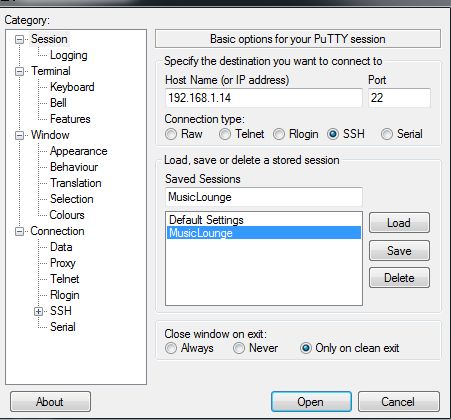
# Now you have the IP assigned to your device, you need to start a ssh session from your (remote) PC,
# this is required to enter the commands and update/install all packages

# putty.exe utility is recommended on Windows, obviously Terminal app will be used on Linux and MacOS:
https://www.chiark.greenend.org.uk/~sgtatham/putty/latest.html

# on other OS, use SSH app or Terminal with ssh pi@192.168.x.x

# click yes and accept the fingerprint key the first time you connect to audio server

# For Linux noob the $ prefix in all commands on this website must NOT be copied, the ‘$’ prefix symbolizes the prompt


# Start the SSH session on Raspberry PI

  1. $ login pi

# use the password of user pi your created during the installation (read the installation and activation of SSH on Debian 12 bookworm),
# ‘raspberry’ is the password by default of the Raspberry PI device

# all basic steps done! now you have the prompt:

  1. pi@raspberrypi:~ $

# to change your password
# (password of our MusicLounge Audiophile distribution is musiclounge )

  1. $ passwd

# START on other distro with only root user,
# we recommend to add a user “pi” (or other name) to mach all our tutorials
# if you use a minimal Ubuntu/Debian distro for Odroid or other boards

# we strongly suggest to read carefully the tutorial to prepare your linux distro before going further

Prepare Your Minimal (light) Linux Distro
https://linuxaudiofoundation.org/misc-preparing-a-minimal-linux-distro-odriod-c2-example/


#
# Congrats! your linux distro is ready, an ssh session is pending
# and the user pi has been created

# add user to sudoers after installation

  1. $ sudo nano /etc/sudoers

# add the line below after root ALL=(ALL:ALL) ALL
# replace <pi> by your username

pi ALL=(ALL:ALL) ALL

# also, add www-data to allow driving the alsa equalizer (edition 2024)

www-data ALL=(mpd) NOPASSWD: /usr/bin/amixer

# save
CTRL+X then Y then ENTER
# create at least Downloads and scripts directories if they do not exist

  1. $ mkdir Downloads
  2. $ mkdir scripts

# ready to start!


# STEP4

# intial configuration, change the default hostname

# skip this step if you already configure the hostname musiclounge during the installation process

# if you intend to create a multi-rooms audiophile configuration sharing the same music library on your LAN network
# do not forget to change the hostname to avoid conflict between each audio server (see the corresponding tutorial)
# we suggest a name including ml for musiclounge followed by the room name (e.g mlbedroom, mllivingroom, mlkitchen,…)

# check your current settings

  1. hostnamectl

# and change it to musiclounge if needed


# on Raspberry PI type:

  1. $ sudo raspi-config

# 0 network options: hostname choose replace raspberrypi by musiclounge for example
# 1 setup localisation choose with SPACE bar en US UTF8 only
# 2 expand SDCARD partition (Advanced Options/Expand)


# on Odroid C4 (Armbian arm64)
# launch armbian-config to make the same changes on ARM based device like on the Odroid C2 or C4

  1. $ sudo armbian-config

# to change the hostname manually

  1. sudo hostnamectl set-hostname musiclounge

# check the hostname

  1. hostnamectl

# check /etc/hostname entry

  1. $ sudo nano /etc/hostname
musiclounge

# check /etc/hosts entry

  1. $ sudo nano /etc/hosts
127.0.0.1       localhost
127.0.1.1       musiclounge

# The following lines are desirable for IPv6 capable hosts
::1     localhost ip6-localhost ip6-loopback
ff02::1 ip6-allnodes
ff02::2 ip6-allrouters


# Optional sanity check

  1. sudo apt update
  2. sudo apt upgrade -y

# reboot the system

  1. sudo reboot

# restart a SSH session

  1. $ login pi

Click the button NEXT below to continue…

IP Of The Server


# STEP2

# get the IP of your audio server

# This is your first boot!
# but before building your audio server you need the IP assigned by your router (integrated dhcp server ) to your device

# in case of error or no IP found, check the DHCP vs Static IP tutorial to
# configure correctly your network interface and go back to this page, here

# try to ping the server (ping musiclounge),
# open terminal or commands prompt and type:

# if the command return an IP v6 address add the param -4 like

c:\>ping musiclounge -4

# you can scan your NETWORK to get the IP address of your audio server if needed
# from any tools or router settings or whatever, internet is your friend
# tools like those ones:

# from linux

  1. $ nmap -sP 192.168.x.x/24

# from macos (type “brew install nmap” if cmd not found)

  1. $ nmap -sP 192.168.x.x/24

# from windows cmd prompt
# C:\Windows\System32>arp -a

# double check by using ping cmd:
# ping 192.168.x.x

# or if you have keyboard/monitor connected to your rPI, login and type:

  1. $ ifconfig

# eth0 entry should contain the IP address

Click the button NEXT below to continue…